BrewBot for iOS is in beta. Features, screens, and behavior may change between builds. Report problems in the support Discord.
This is a premium feature. Upgrade your plan to access it.
Get the beta
The beta is available through TestFlight. To get an invite, contact support in the support Discord.Before you start
- Sign in to the dashboard at least once, so your servers and teams are set up.
- Choose a source for the platform you want to play. For TikTok, add a channel in TikTok Chat Monitor. For Twitch, add a source in Twitch TTS.
- Make sure the server has premium. On team servers, TikTok TTS and Default voice also need server admin access or the Speed Dating feature permission.
Sign in
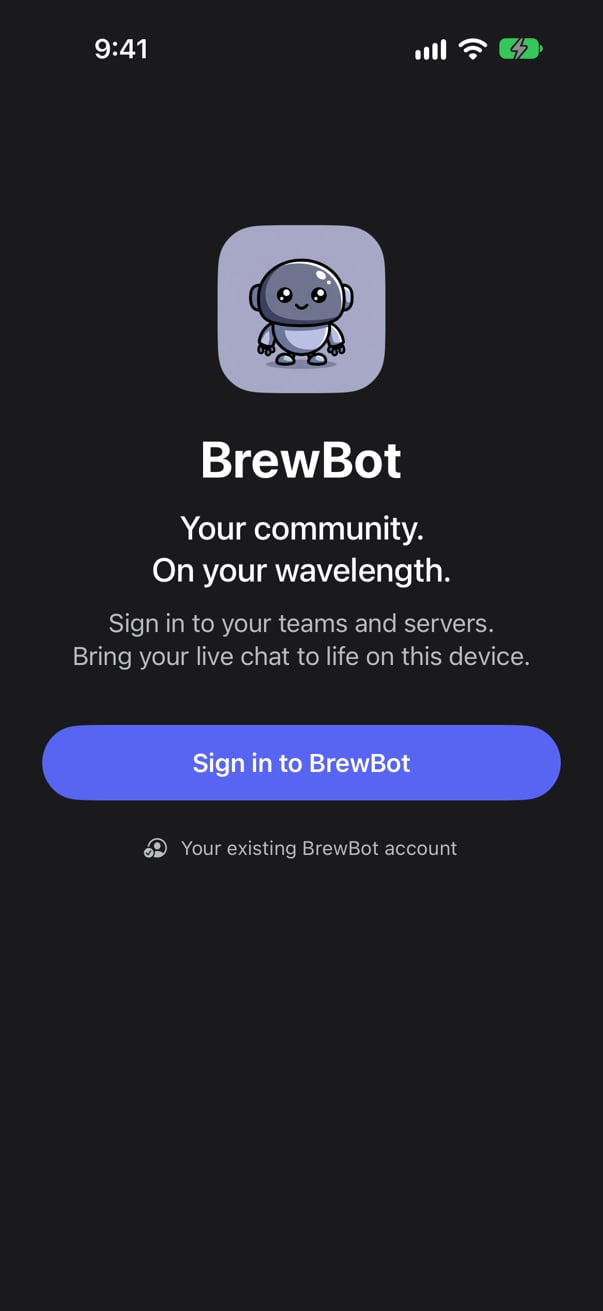
Open the app and select Sign in to BrewBot. Use the same email or Discord sign-in you use on the dashboard. You don’t need a separate account.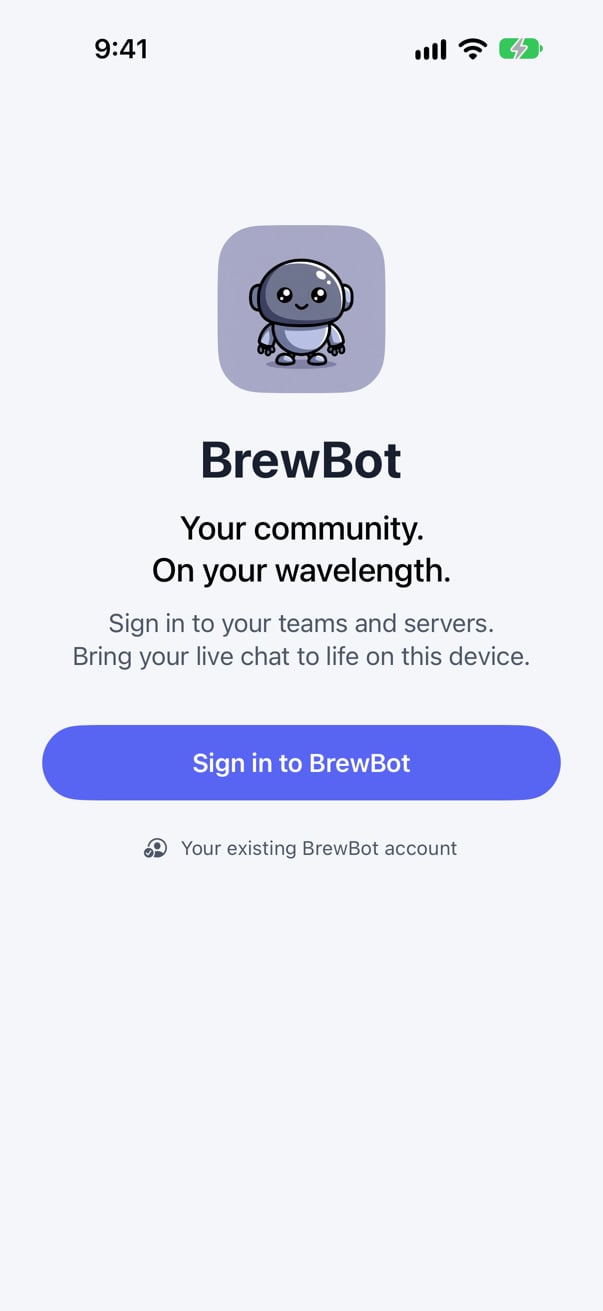
Find your server
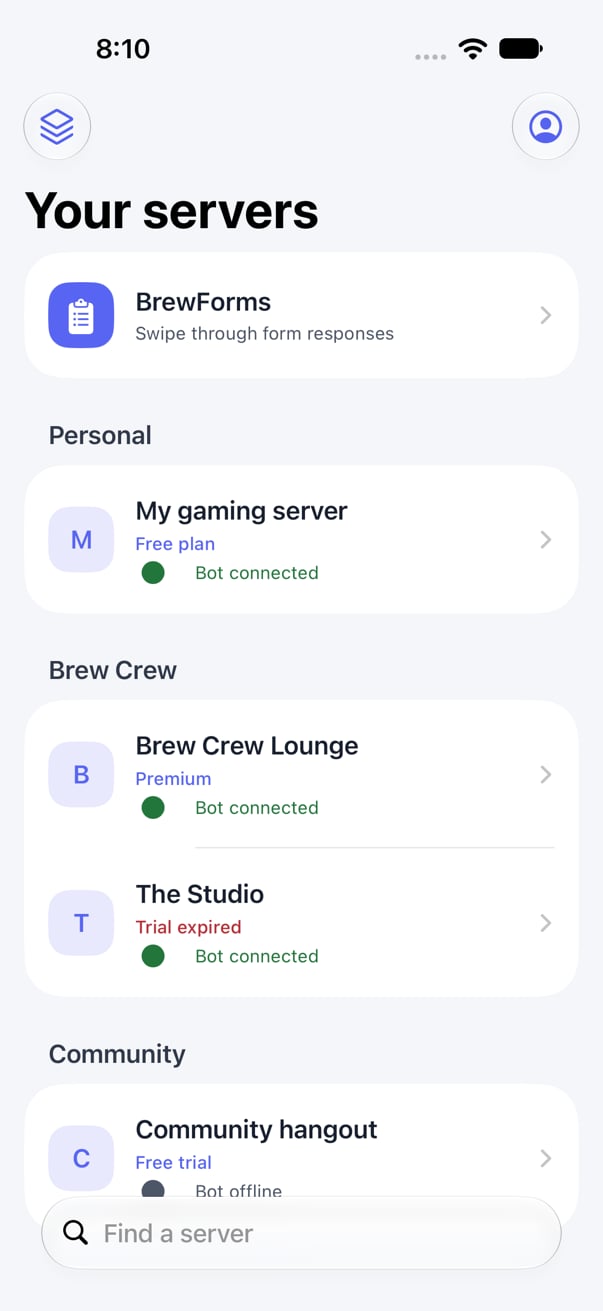
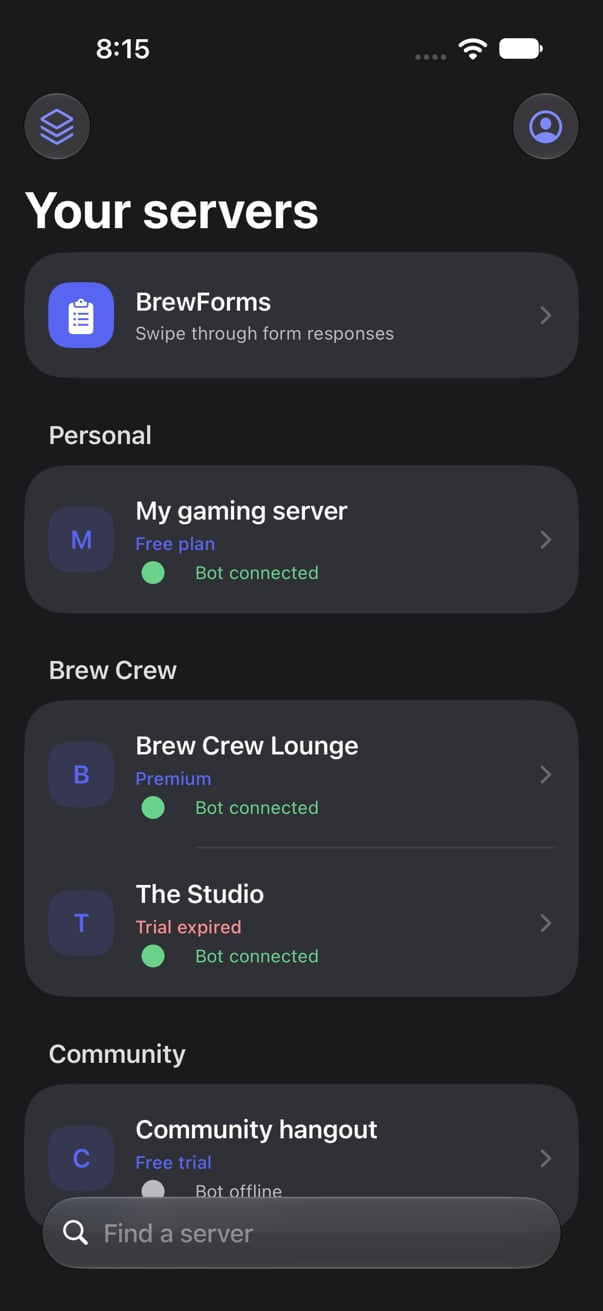
Your servers lists every server you can access, grouped by personal workspace and team. Each server shows whether the bot is connected or offline.- Select the workspace button at the top left to show All servers, only Personal, or a single team.
- Use Find a server to search by name.
- Pull down on the list to refresh it.
Play TTS on your device
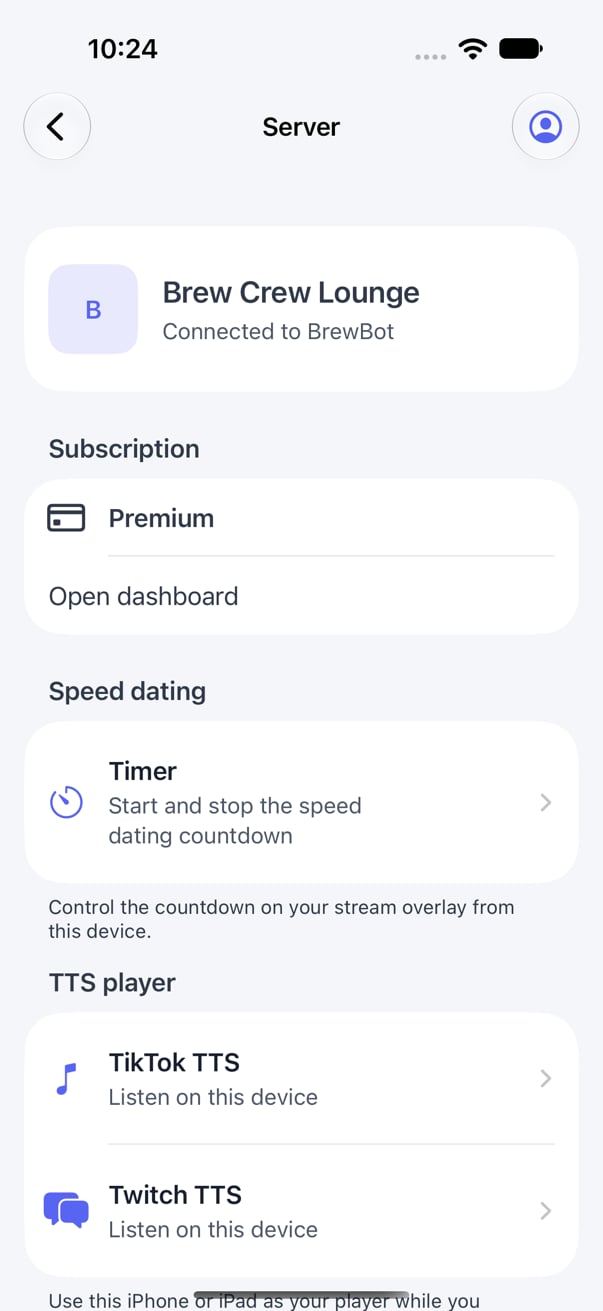
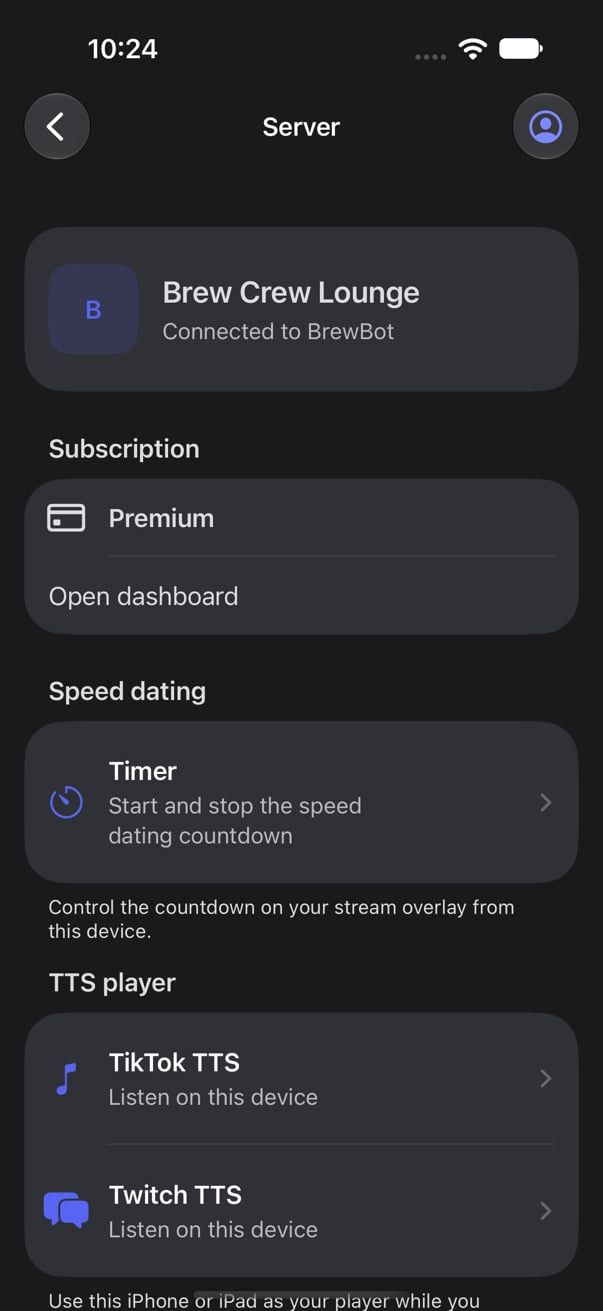
- Open a server and select TikTok TTS or Twitch TTS.
- Select Start listening.
- Keep the app open. New messages play automatically.
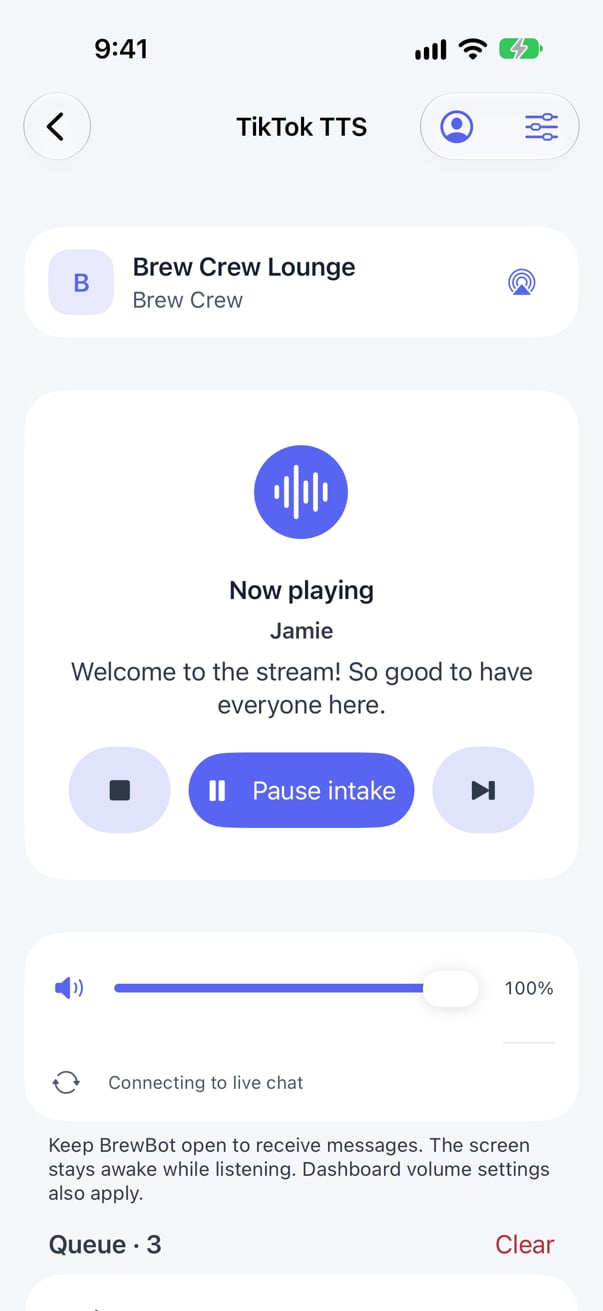
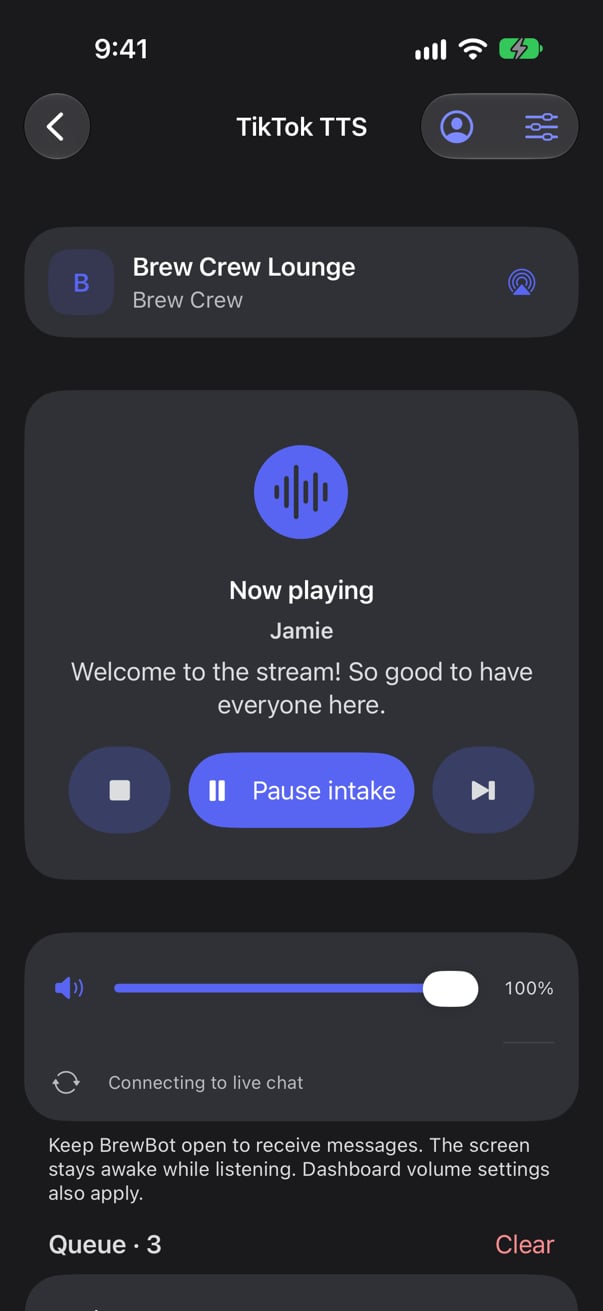
Each platform has one queue per server, shared by the app, the OBS browser source, and the browser player. Each message plays on one player only, not on every device. Use only the player you want your stream to hear.
Keep the player running
- Your screen stays awake while the player is listening.
- If you switch apps or lock your phone, the current message finishes. New messages wait until you come back to BrewBot.
- If a call or another app interrupts audio, or your headphones disconnect, the message playing now stops and is skipped, and the player pauses intake. Pausing from the lock screen does the same. Select Resume when you’re ready.
- Going back to the server list, switching servers or platforms, or signing out stops the player. Rotating or folding your device doesn’t.
For a whole stream, keep BrewBot open on a device that stays plugged in. The app doesn’t keep playing new messages in the background.
Change TTS settings
Open TTS settings from the server page, or select TTS settings (the sliders icon) in a player. The app uses the same settings as Live Tools > TTS Settings in the dashboard. Changes apply to the server on all your devices.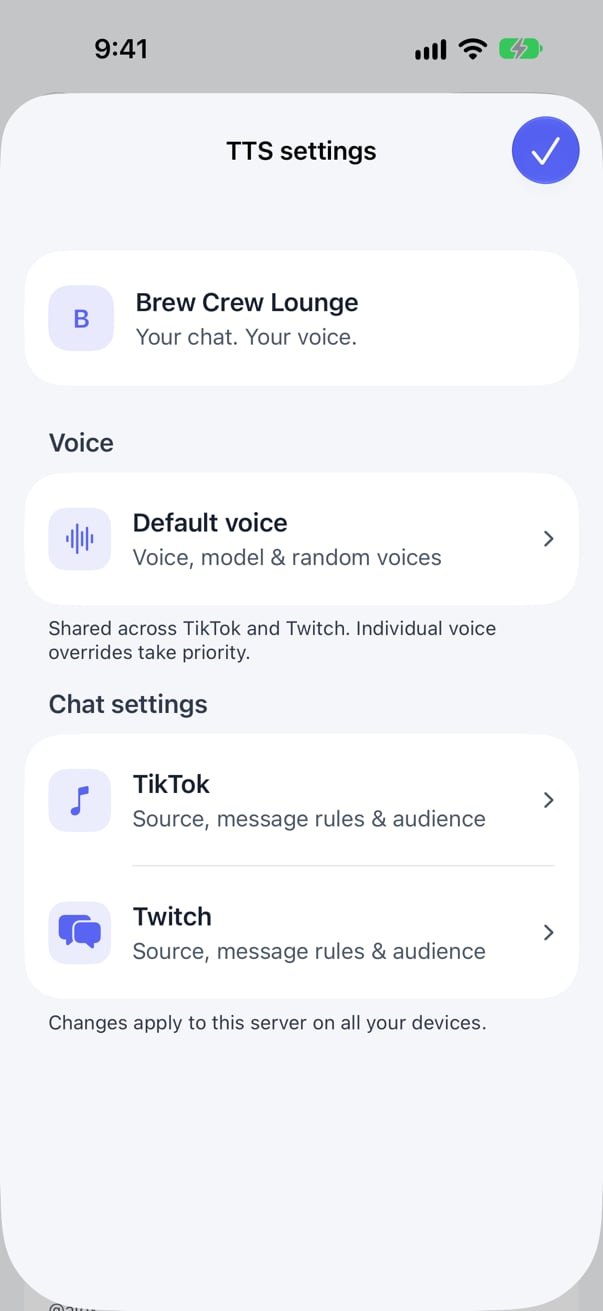
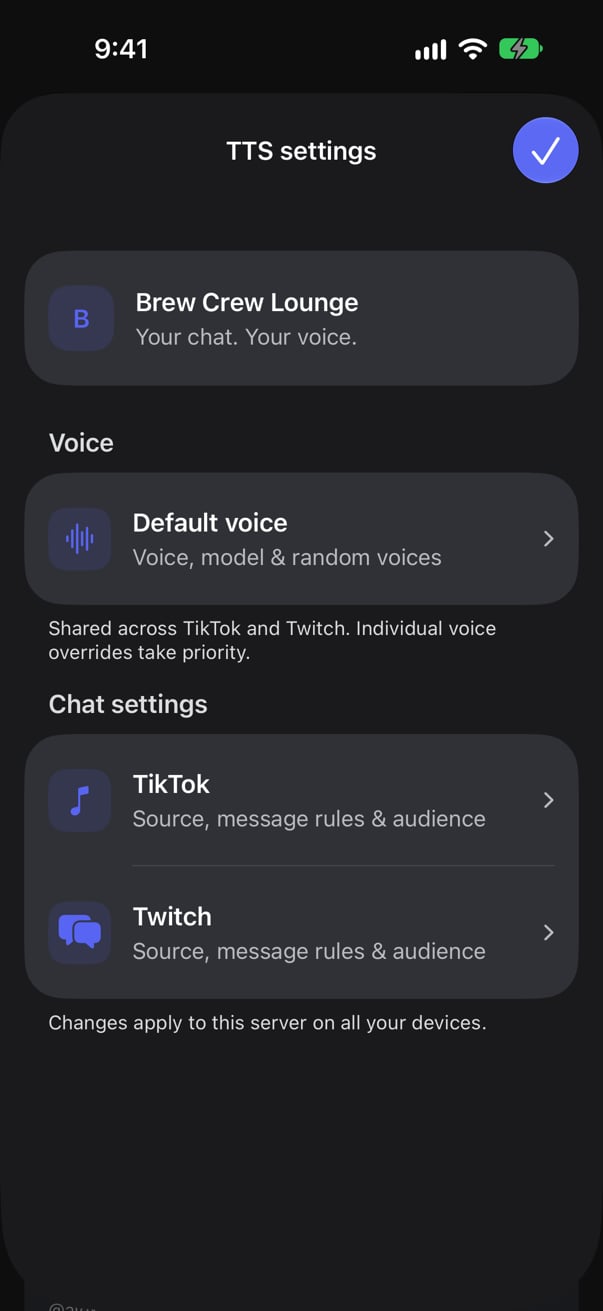
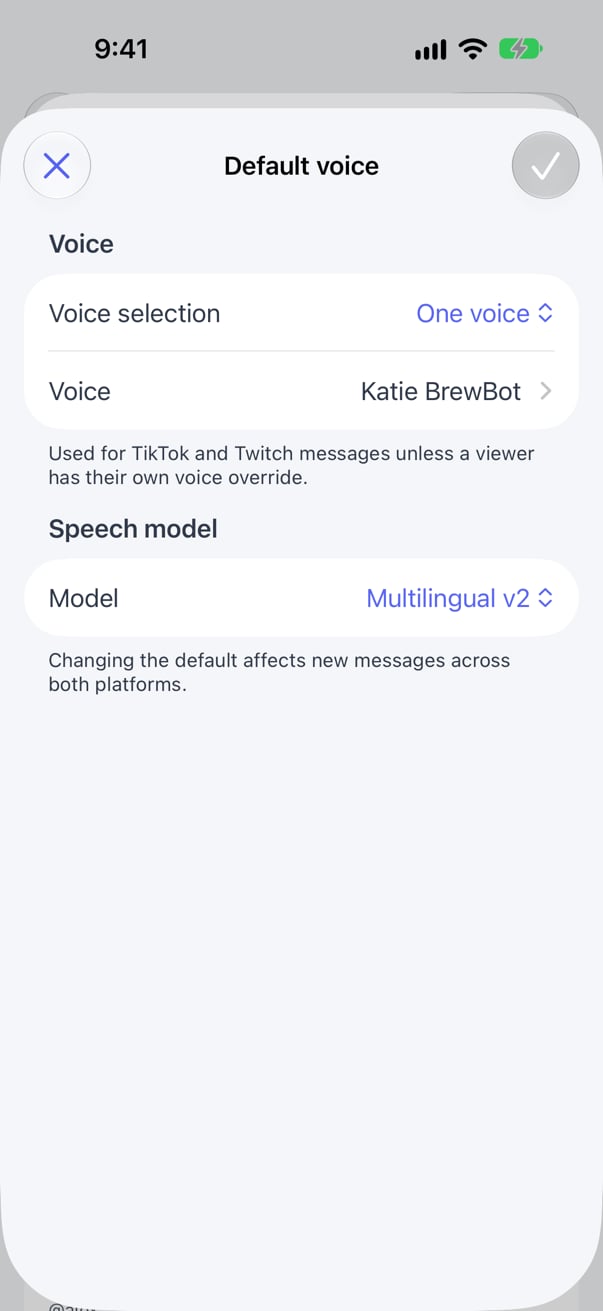
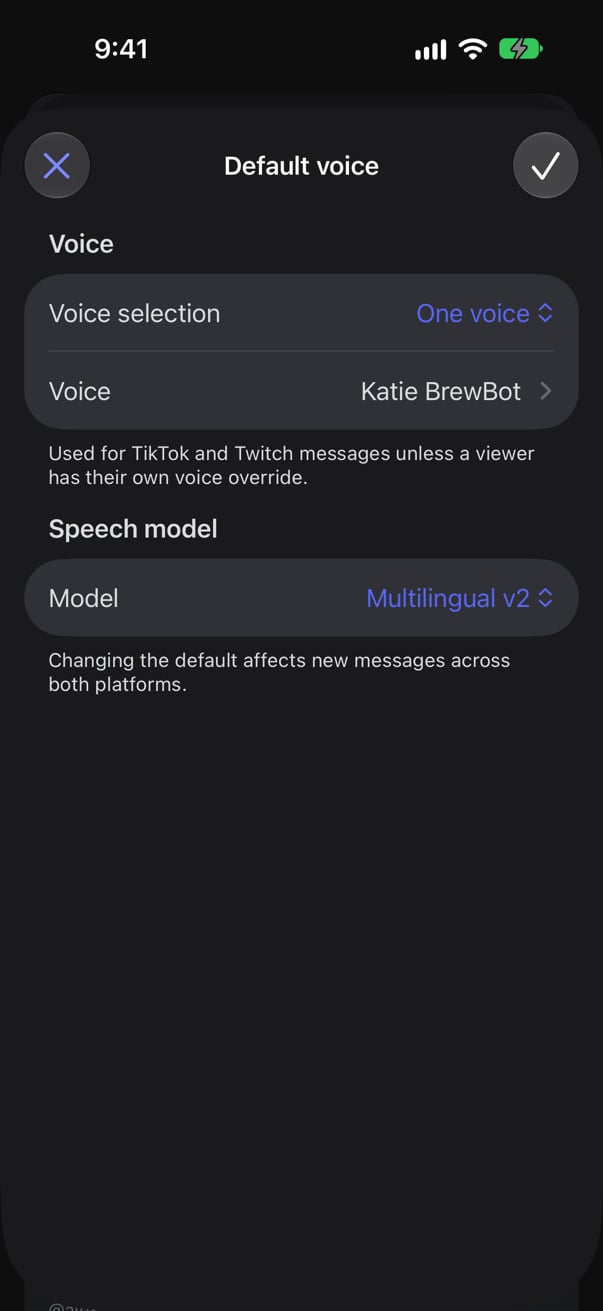
Default voice
Default voice is shared by TikTok and Twitch.- Voice selection: choose One voice, or Random voices to pick a voice for each message.
- Voice: with One voice, search the voice list by name or style.
- Model: choose Multilingual v2 or Eleven v3. Eleven v3 supports audio tags.
TikTok and Twitch
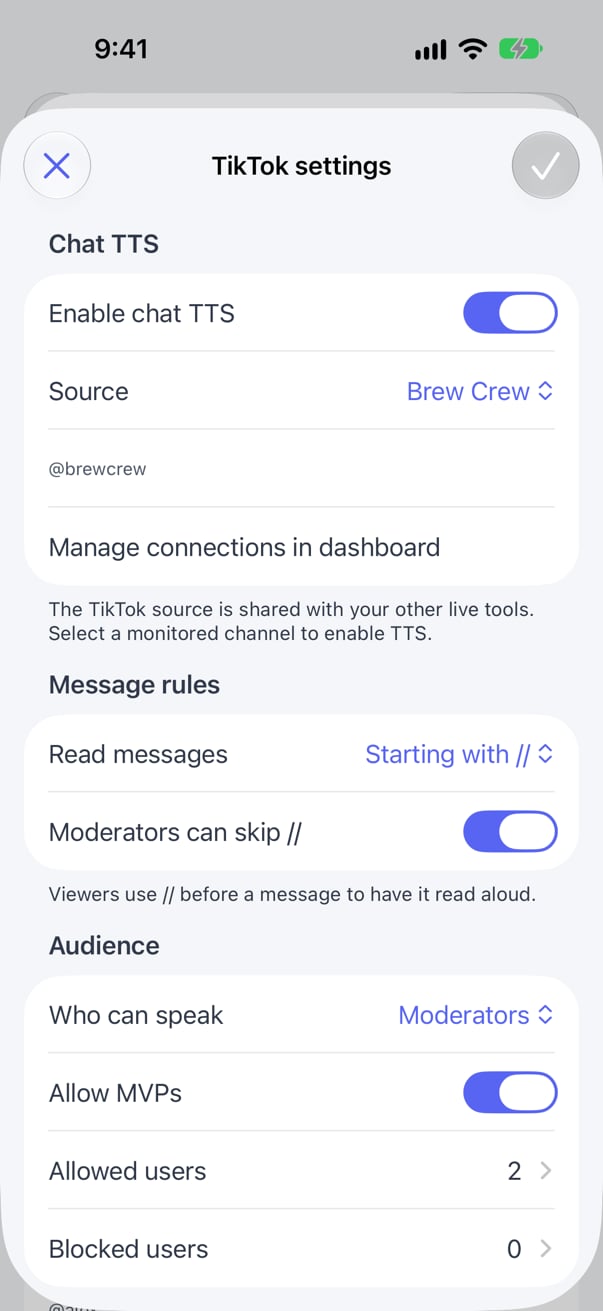
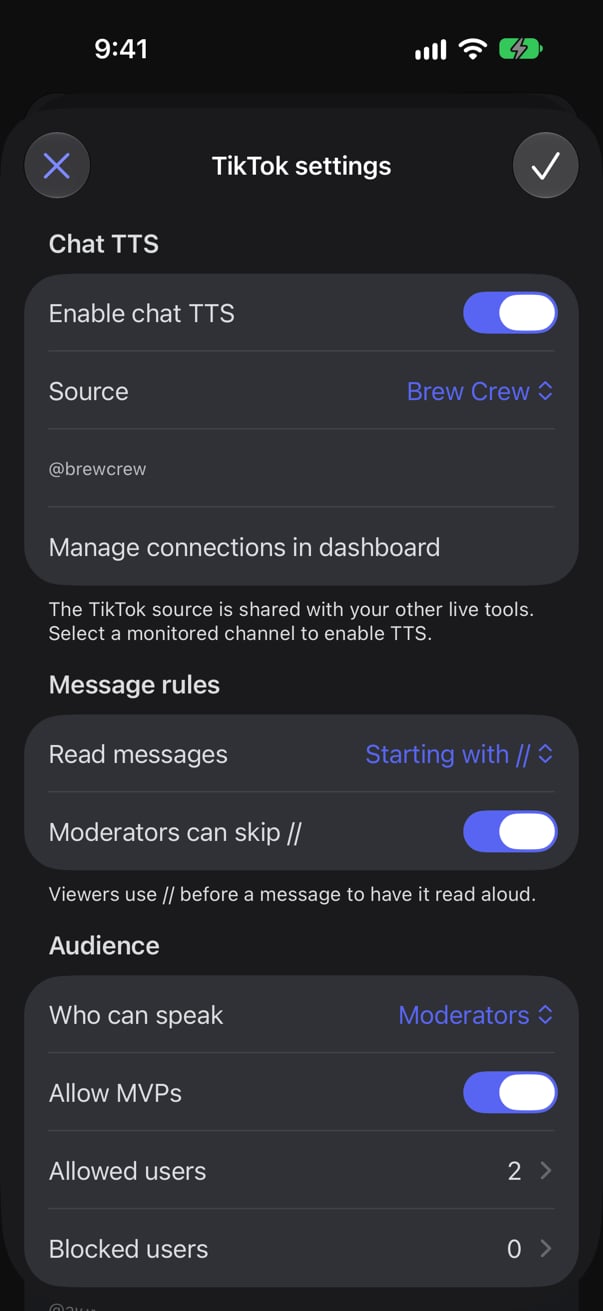
Select TikTok or Twitch to change that platform’s chat settings.
The source list shows your monitored TikTok channels or the Twitch sources you’ve added. Sources marked (unavailable) need attention in the dashboard. Select Manage connections in dashboard to add or reconnect one. You can’t turn on Enable chat TTS until you choose an available source. The TikTok source is shared with your other live tools, so changing it here changes it for them too.
Save your changes
Your changes aren’t applied until you select Save (the check mark at the top right of the editor). If you close a screen with unsaved changes, the app asks before discarding them. If saving fails, your changes stay on screen so you can try again. Opening settings from a player doesn’t stop playback. Saving a new Source, or turning chat TTS on or off, stops this device’s player for that platform. Select Start listening again afterward. Other changes apply to new messages without stopping the player.Run the speed dating timer
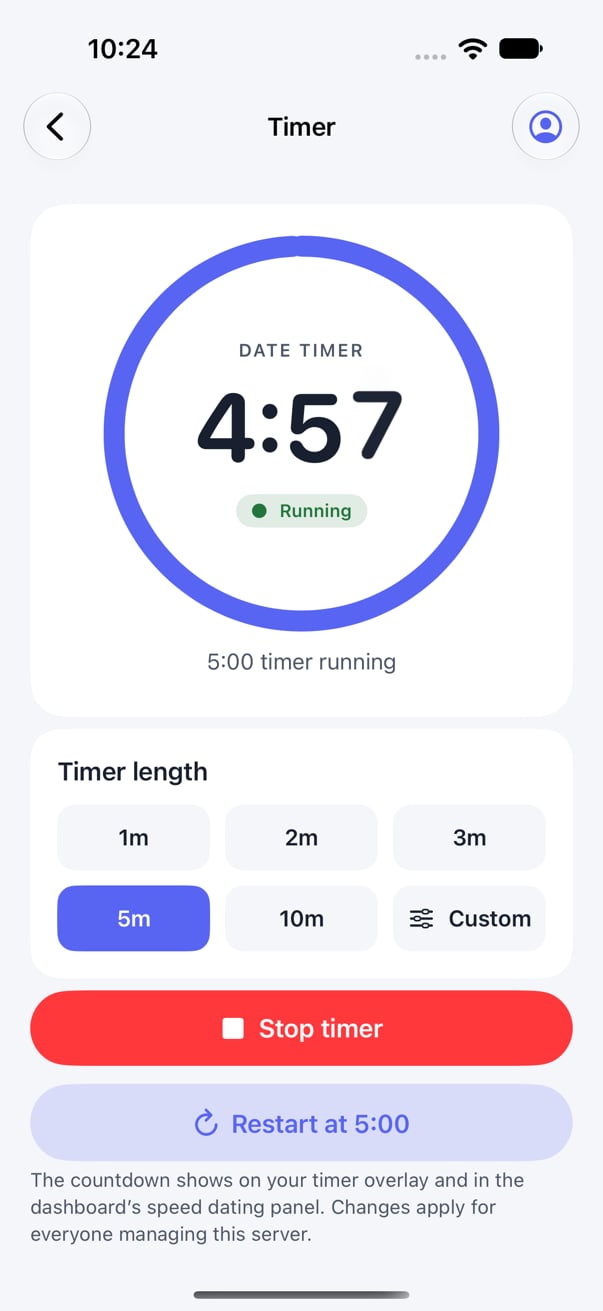
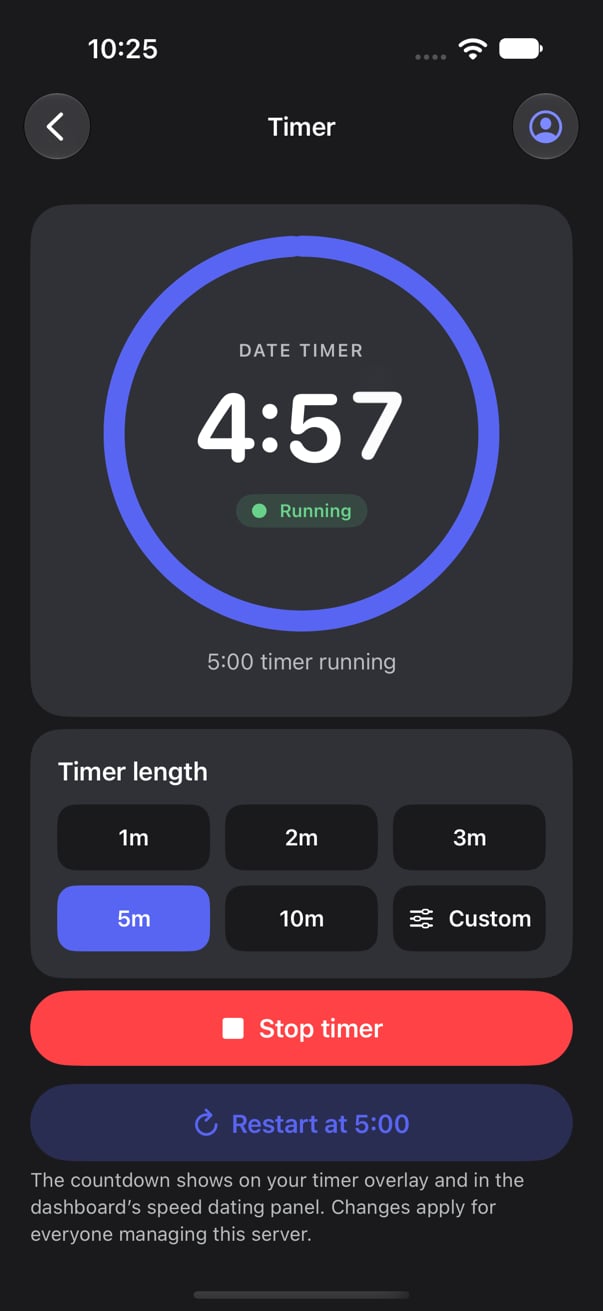
On a team server, select Timer on the server page to control the same countdown as Start 3m and Reset in the dashboard’s Speed Tracker. The countdown shows on your timer overlay and on every dashboard managing the server.- Under Timer length, pick 1m, 2m, 3m, 5m, or 10m, or select Custom to choose any length up to 60 minutes. The app remembers your choice on this device.
- Select Start.
- Select Stop timer to end the countdown early, or Restart to start it again at the length you picked.
Manage Brewlinks
Open Brewlinks from the server page to see the server’s Brewlinks pages, how many of the five you’ve used, and whether each page is Live or a Draft. The app uses the same pages as Engagement > Brewlinks in the dashboard.- Select New page (the plus button) to create a draft page and open it.
- Select a page to see a preview of what visitors see.
- Swipe left on a page, or select Delete page at the bottom of a page, to delete it. Deleting removes the page and its links permanently.
- Touch and hold a live page to copy, share, or open its link.
Share a page
On a page, turn on Public page to publish it, or off to hide it again. A page needs at least one link before you can publish it. Once it’s live, use Copy link, Share, or Open page.Edit a page
Select Edit (the pencil at the top right) to change the page’s title, subtitle, link, accent color, and links.- Link sets the end of the page’s address, such as
brewlinks.gg/your-slug. It uses lowercase letters, numbers, and hyphens. - Accent color: pick a color, or enter a hex value like
#5865f2. - Add link adds a link. Enter its title and address. If you leave out
https://, the app adds it. - To reorder links, select Edit in the Links header and drag them. Swipe left on a link to remove it.
Change the logo
Tap the logo in the preview, or select Choose a new logo, and pick a photo. The new logo goes live right away, without saving. The app converts photos to a supported format and size for you. Select Use server icon to switch back to your Discord server icon.Read BrewForms responses
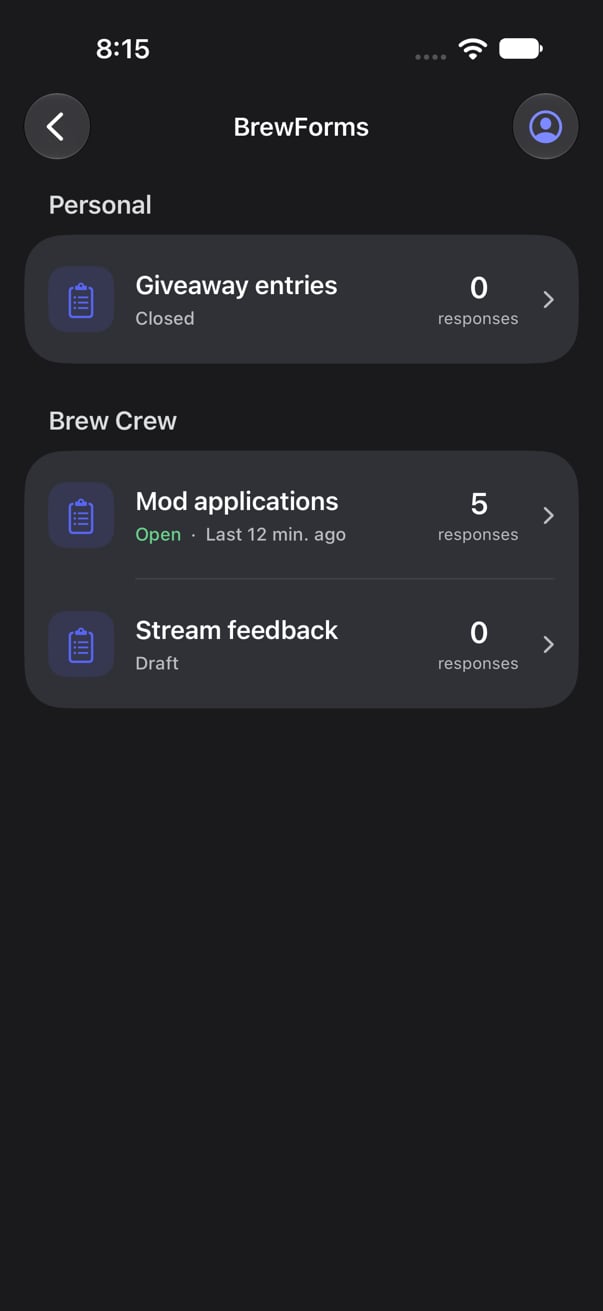
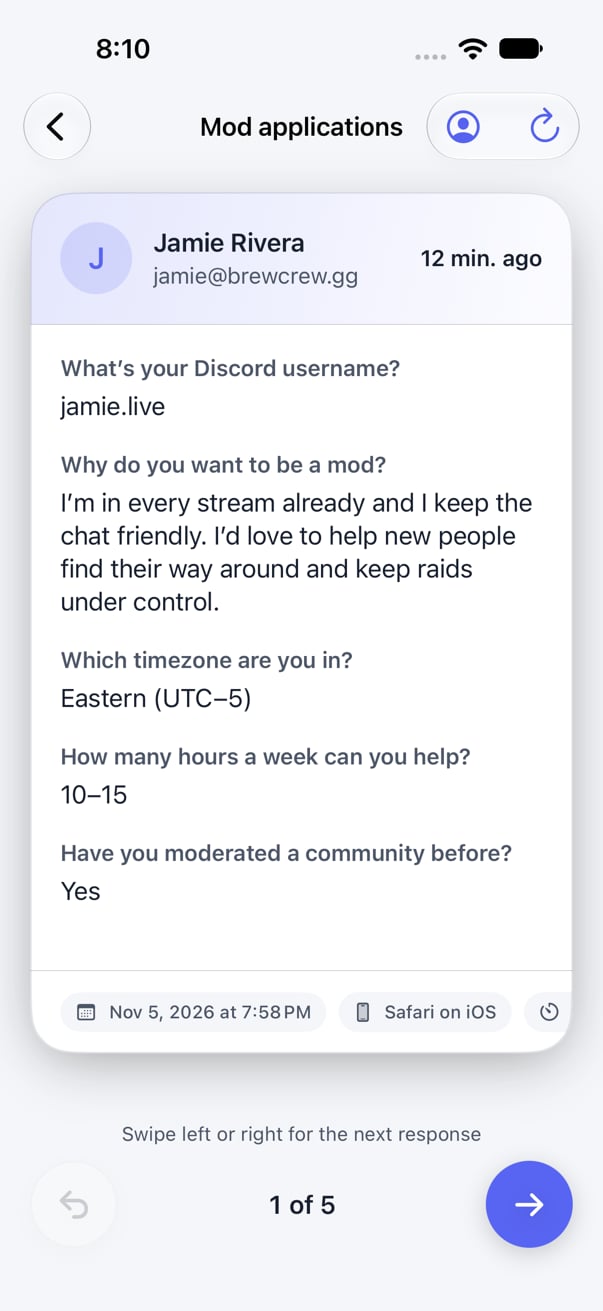
Select BrewForms at the top of Your servers to see your forms and how many responses each has. Forms are grouped by workspace and follow the workspace button: All servers shows your personal forms and every team’s. You see the same forms as in the dashboard: the forms you created, or every team form if you’re a Team Admin.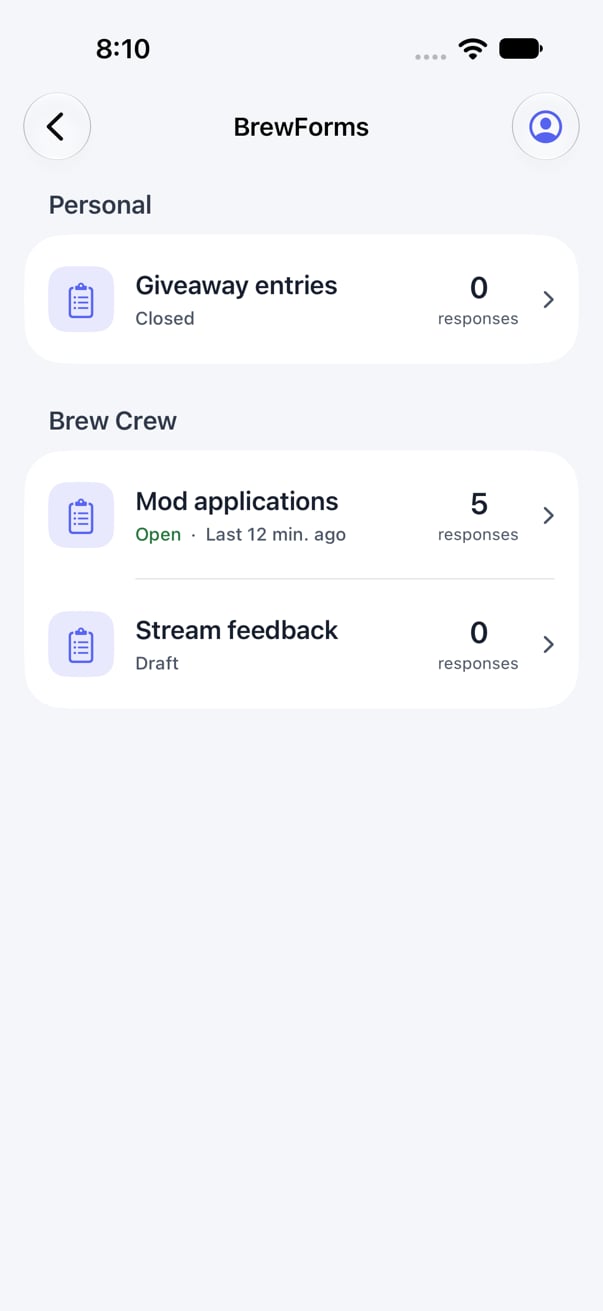
- Swipe a card left or right, or select Next (the arrow), to go to the next response.
- Select Previous (the curved arrow) to bring back the last one.
- After the last response, select Start over to go back to the newest.
Account and appearance
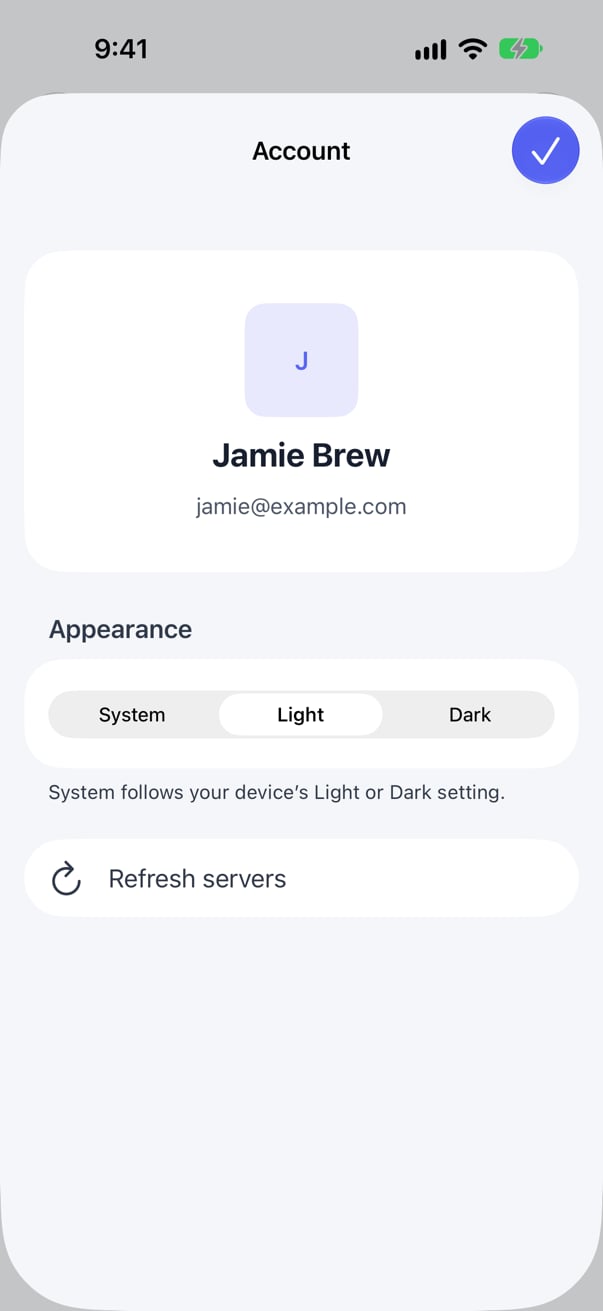
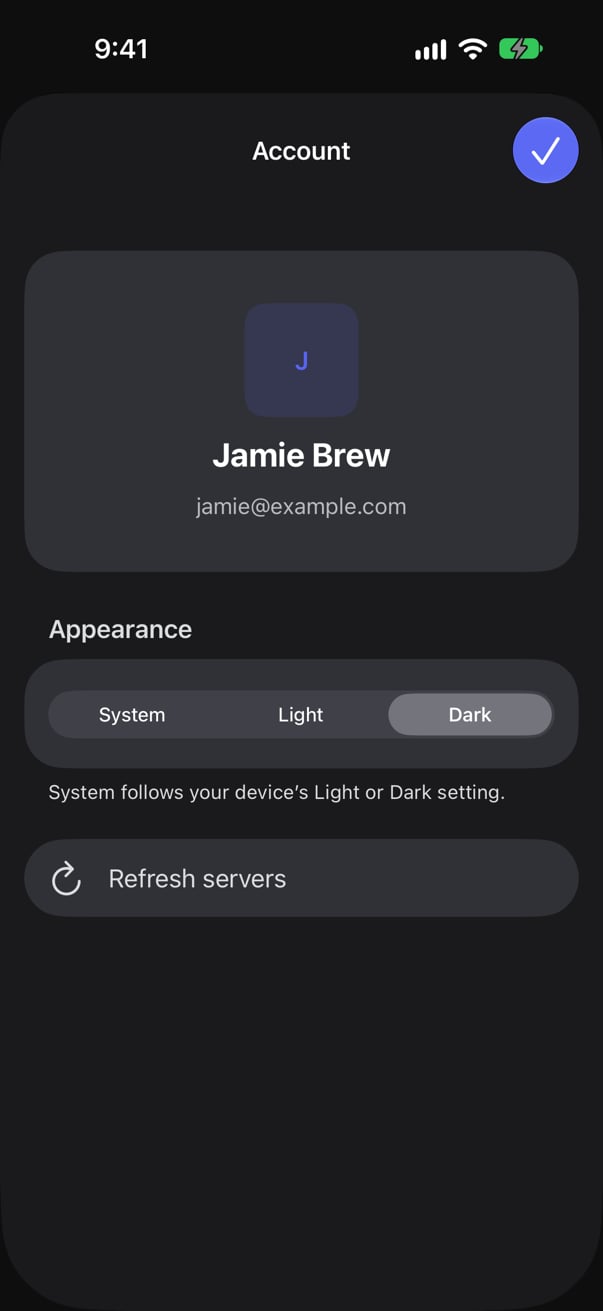
Select the profile button at the top right to open Account.- Manage profile opens your profile, where you can change your name, email, and sign-in methods.
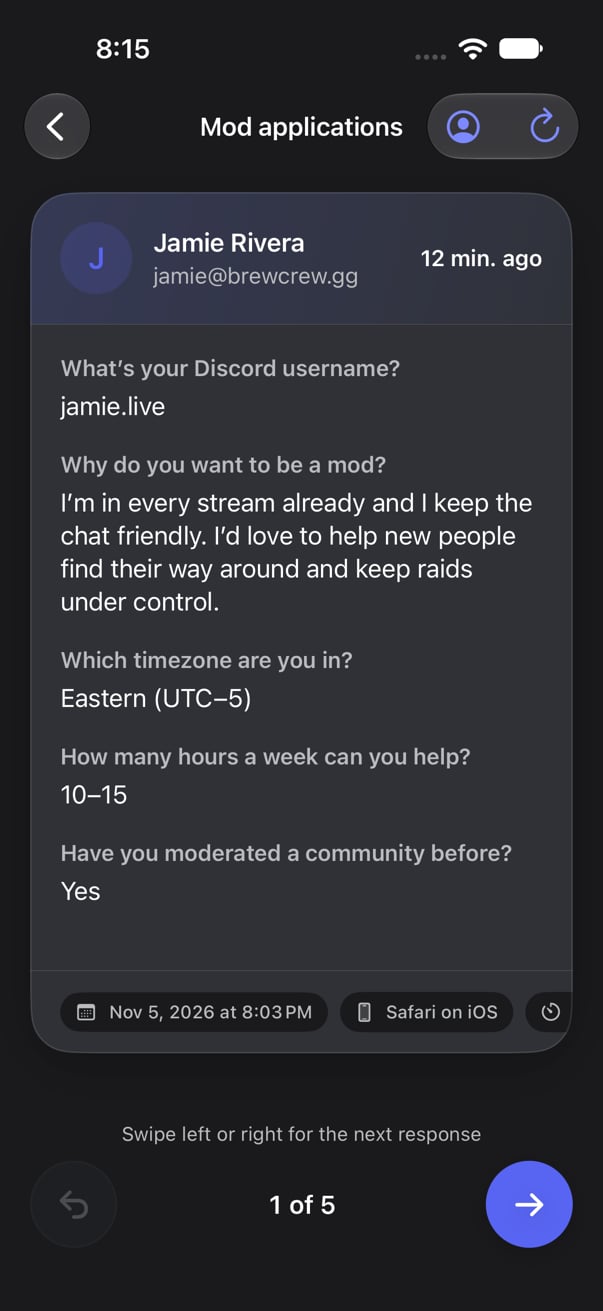
- Appearance sets the app to System, Light, or Dark. System follows your device setting.
- Refresh servers reloads your server list.
- Sign out stops playback on this device and signs you out.