This is a premium feature. Upgrade your plan to access it.


Before you start
- Connect your Govee account in Govee Cloud.
- Add the TikTok account you stream from in TikTok Chat Monitor, and make sure monitoring is turned on.
Control your lights
Your lights lists your Govee lights. Select Turn on or Turn off to switch a light. Lights that don’t support power control from Govee’s cloud have these buttons turned off. With more than six lights, the list shows the first five. Select Show all followed by the number of lights to see the rest, and Show fewer lights to collapse it again. Power commands don’t change your gift effects. A success message means Govee accepted the command. The light itself may take a moment to respond. Turning a light on or off also cancels a pending switch-back on that light.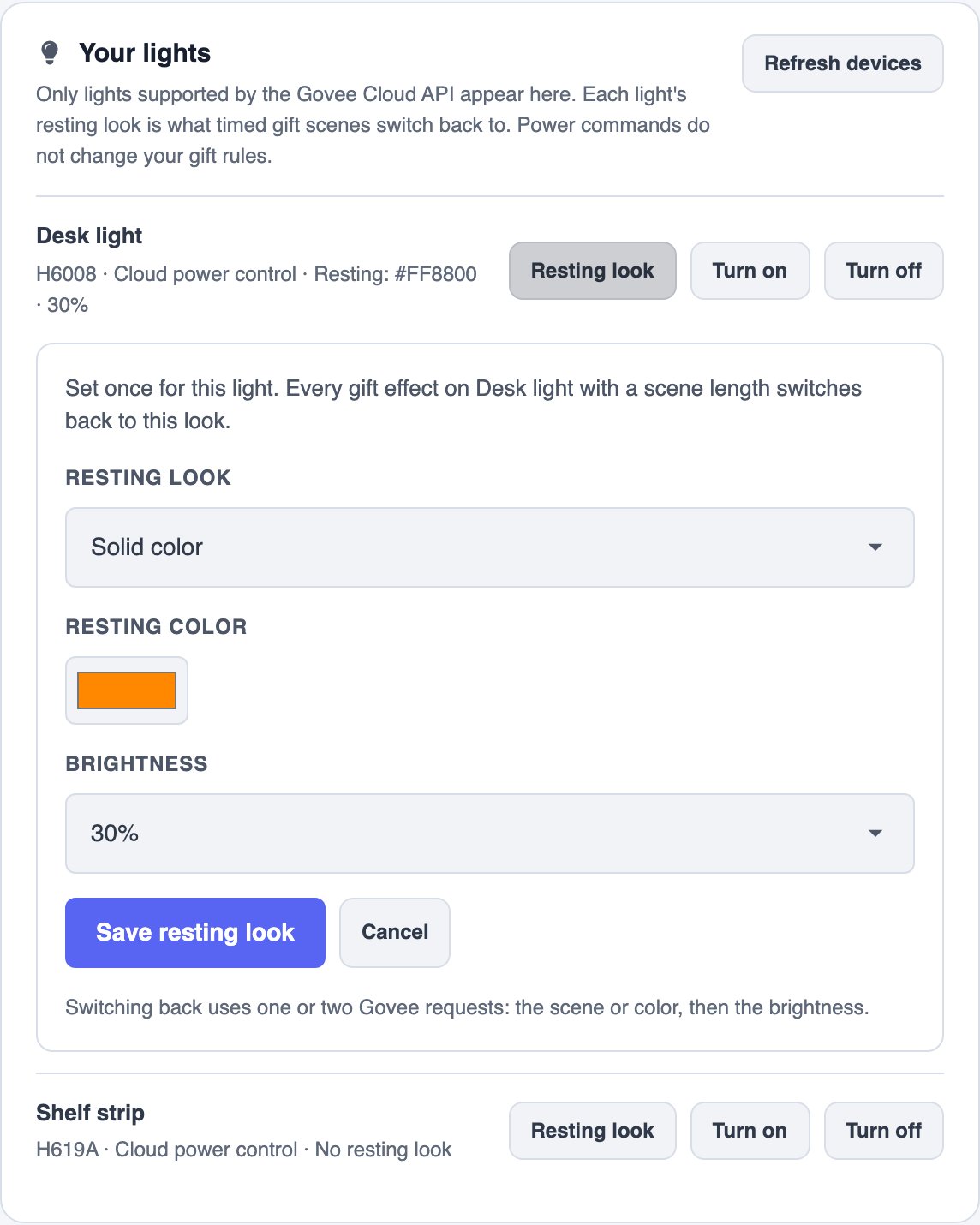
Set a resting look
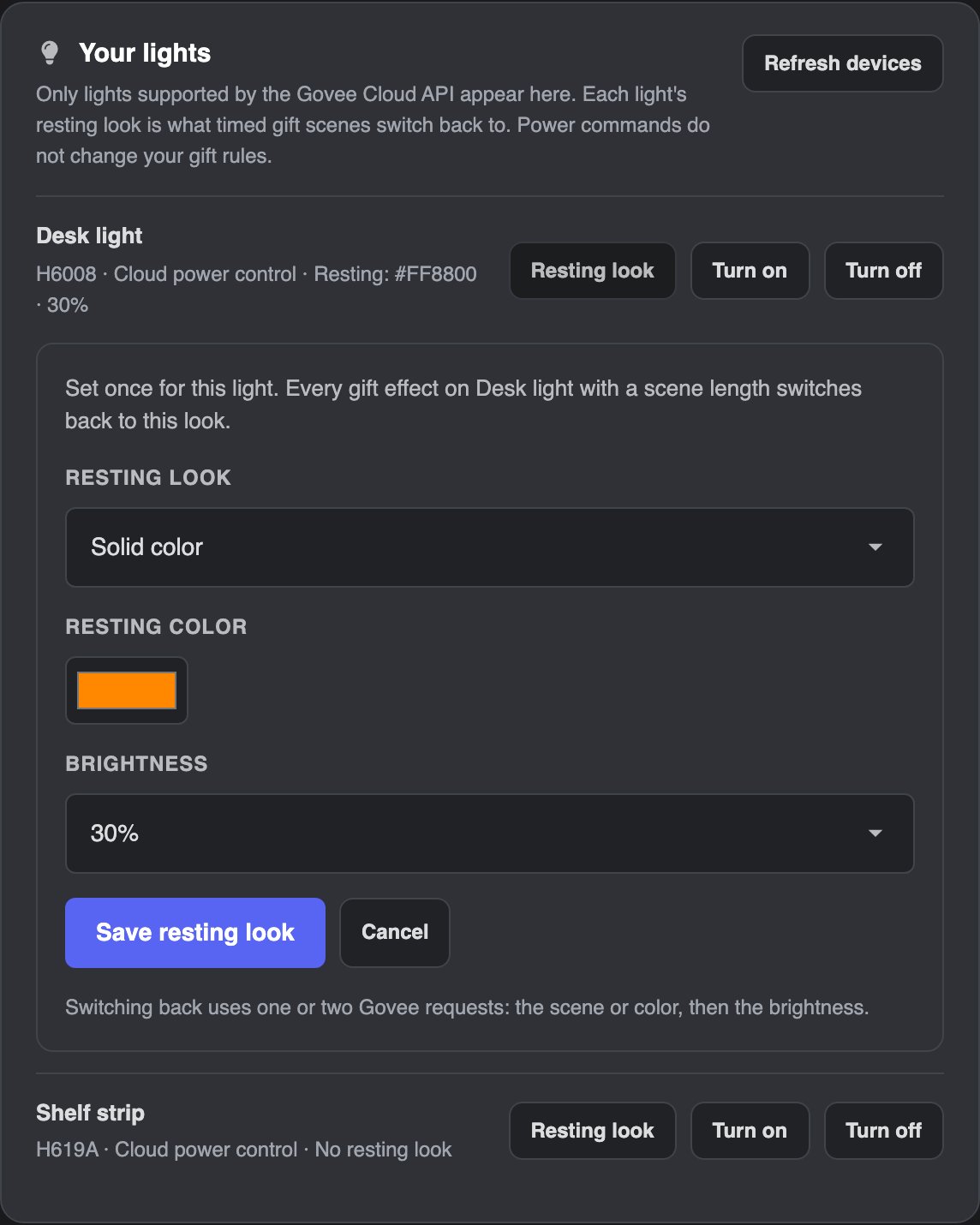
A resting look is what a light switches back to after a timed gift scene. It belongs to the light, not to a gift: set it once, and every gift effect on that light with a scene length switches back to it. You need one before you can give a gift effect a scene length.- In Your lights, select Resting look next to the light.
- Choose a Resting look: a Scene or a Solid color. Choose No scene or color to only change the brightness.
- Optionally choose a Brightness.
- Select Save resting look.
BrewBot switches back to the resting look you set, not to whatever the light was showing before the gift. Govee doesn’t report which scene a light is running, so BrewBot can’t restore it.
Set one resting look for all your lights
With two or more lights, you don’t have to set each one separately. Set for all lights saves the same resting look to every light you check.- In Your lights, select Set for all lights.
- Choose a Resting look and, optionally, a Brightness, the same way as for one light. The form starts on Scene.
- Under Apply to, every light starts checked. Uncheck any light that should keep its own resting look, or use Uncheck all and pick a few.
- Select Save for followed by the number of lights.
- Solid color skips lights without color support. Lights without brightness control get the color only.
- Scene is picked by name across all your lights. Each Govee model has its own scenes, so every light switches back to its own model’s version of that scene. The menu shows how many checked lights have each scene, for example Built-in · Sunrise (18 of 22 lights), and lights without it are greyed out as No Sunrise scene.
- No scene or color with a brightness skips lights without brightness control.
Saving a scene for many lights checks it on each light with Govee, which uses one or two of your daily Govee requests per light. Colors and brightness don’t need this check.
Connect a gift to a scene
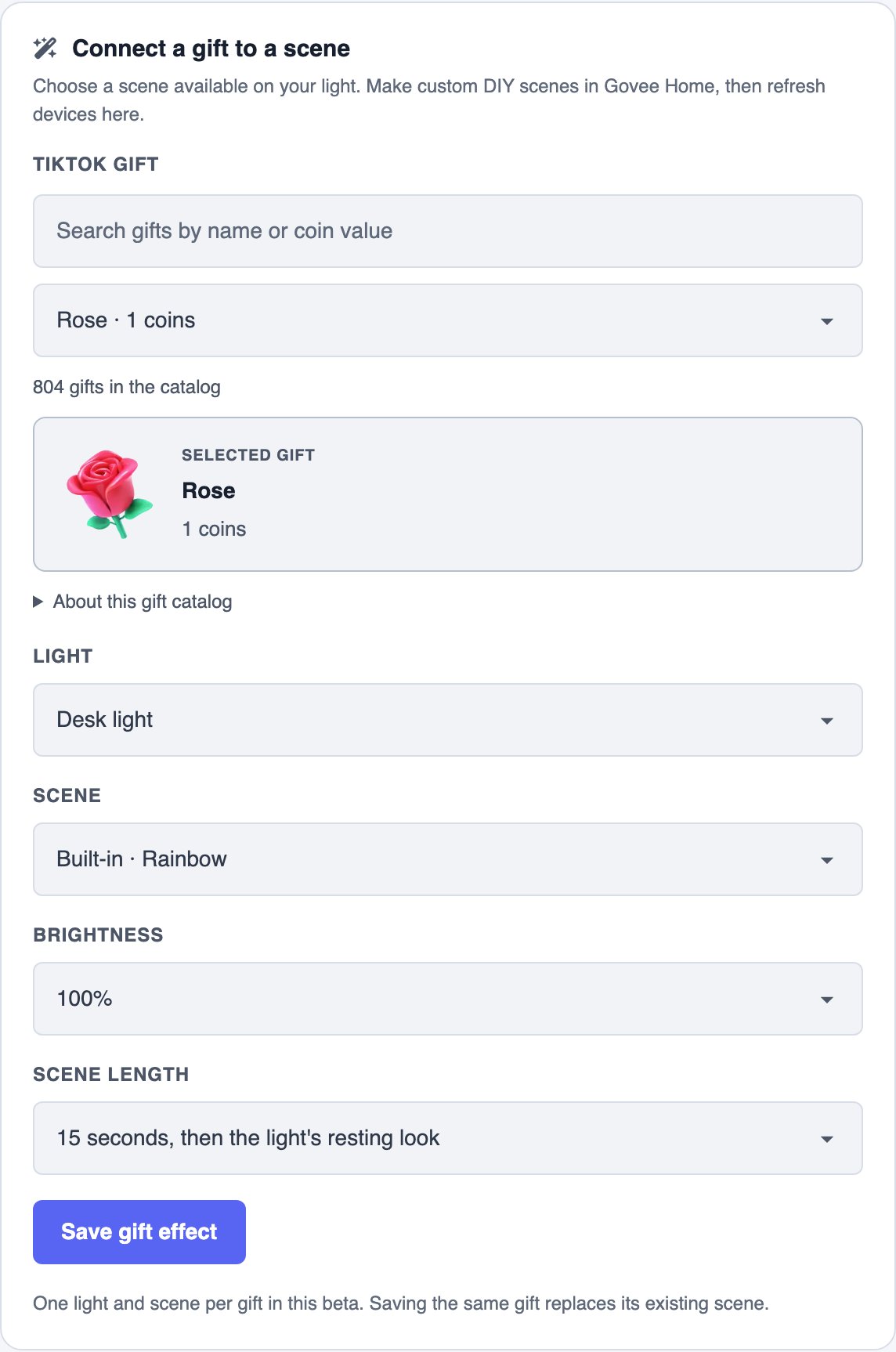
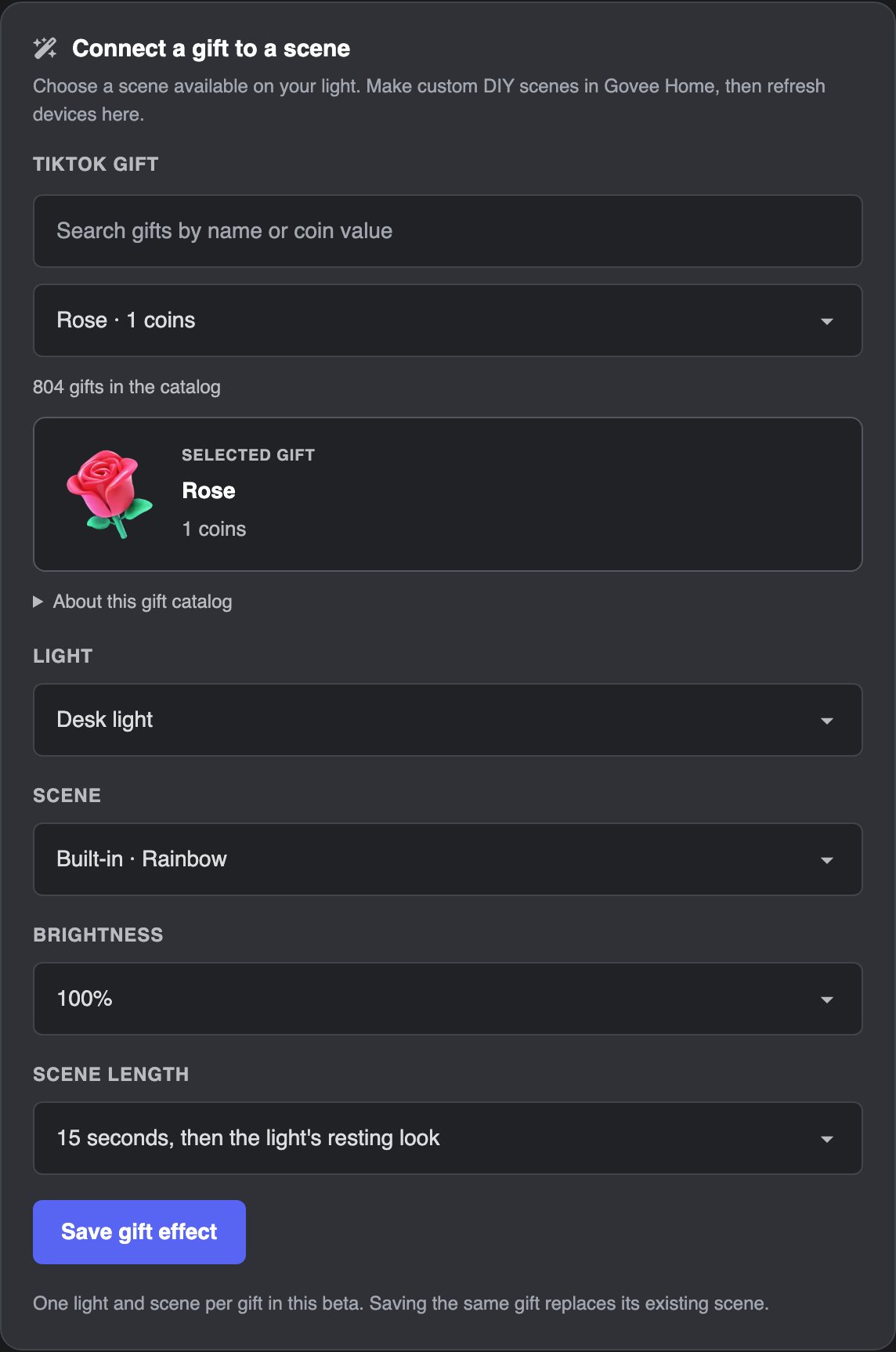
- In Connect a gift to a scene, choose a TikTok gift.
- Choose a Light: one light, All lights, or Choose lights… to check the ones you want. Only lights that support scenes are listed.
- Choose a Scene. Built-in scenes come from Govee; DIY scenes are ones you made in Govee Home.
- Optionally choose a Brightness for the scene. Don’t change keeps the light’s current brightness.
- Choose a Scene length: Until something else changes it, or 5 to 120 seconds followed by the light’s resting look.
- Select Save gift effect.
Play a gift on all your lights
Set a gift once and every light can play it. Choose All lights under Light, or Choose lights… and check the lights you want. With one light, these choices don’t appear. Each Govee model has its own scenes, so with several lights you pick a scene by name. Every light plays its own model’s version of that scene. The Scene menu shows how many of your lights have each scene, for example Built-in · Rainbow (18 of 33 lights). Lights that don’t have the scene are skipped, and the form lists them before you save. The gift still plays on the rest. With several lights:- A Brightness applies to every light that can dim. Lights without brightness control just play the scene.
- A Scene length needs a resting look on every light. If some are missing, the form names them. Use Set for all lights in Your lights to give them one at once.
- The lights change together. BrewBot sends to up to 10 lights at a time, and they switch back to their resting looks together too.
Turn on gift automation
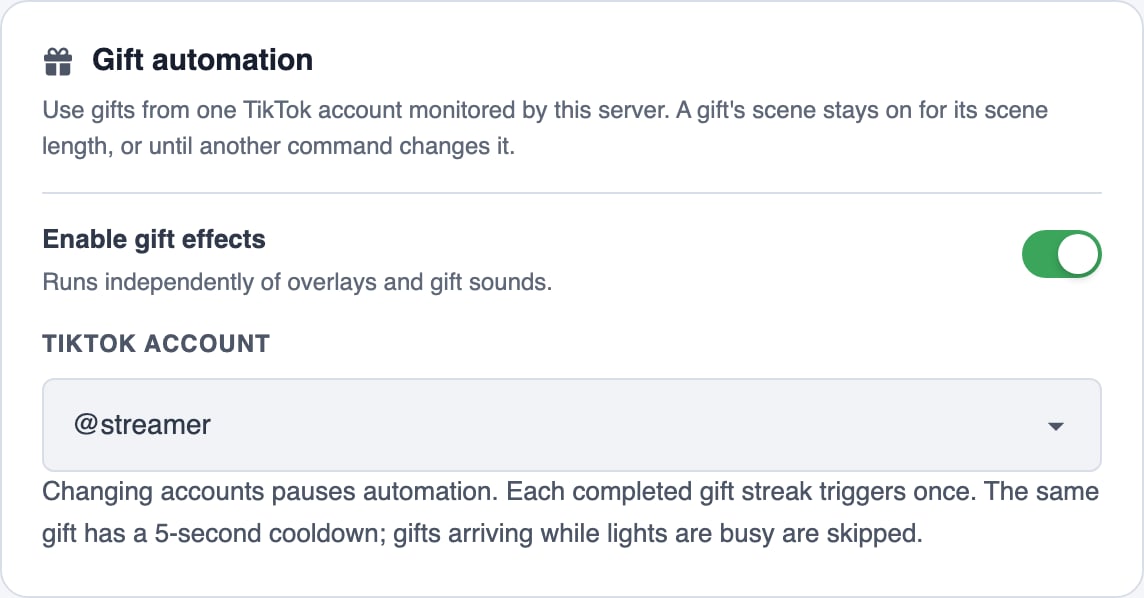
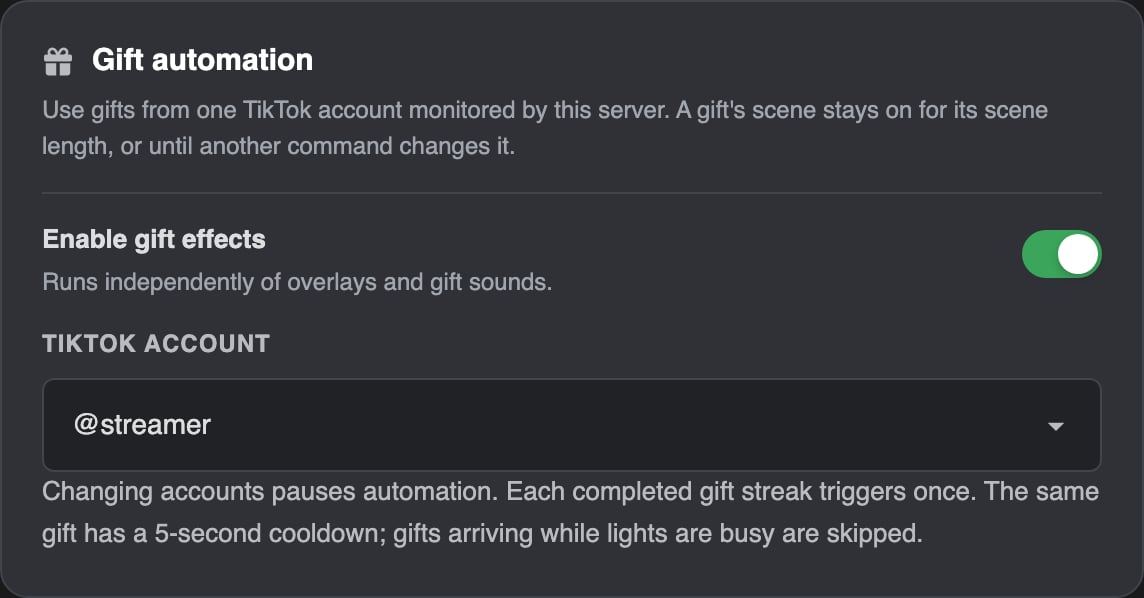
- In Gift automation, choose the TikTok account to listen to.
- Turn on Enable gift effects.
How gifts trigger scenes
- Each gift triggers its scene once. A gift streak triggers once, when the streak finishes, no matter how many gifts were in it.
- Gifts sent to a co-host or guest instead of the host are skipped.
- The same gift can trigger at most once every 5 seconds.
- Your lights take at most one command per second, and that limit is shared with the dashboard’s power and test buttons. Gifts that arrive while your lights are busy are skipped, not queued.
- A scene with a brightness sends two commands to each light: the scene, then the brightness.
- A gift on several lights sends to up to 10 lights at once, so lights stay busy one second per command for every 10 lights. For example, 33 lights with a brightness are busy for 8 seconds. If one light doesn’t respond, the others still change, and the gift effect names the lights that failed.
- With a scene length, the light switches back to its resting look when the time is up. If another gift changes the same light first, the timer restarts from that gift. A gift without a scene length, or a manual Turn on or Turn off, cancels the switch-back.
- Switching back still happens if BrewBot restarts during your stream. If your lights are busy at that moment, it waits a second instead of being skipped.
- Without a scene length, a scene stays on until something else changes the light.
- Failed gift commands aren’t retried, because Govee may already have applied them. A failed switch-back is tried up to three times in total before a warning appears on the light.
Govee’s daily limit
Govee allows 10,000 requests per account each day. To stay under it, BrewBot counts every request it sends with your key, including loading lights and scenes, tests, gifts, and switch-backs, and stops at 9,999 until midnight UTC. The Govee requests today tile at the top of the page tracks the count with a bar. It turns amber at 80% and shows how many requests are left. At 9,999 it turns red and shows Paused until midnight UTC.- Each light a gift plays on uses its own requests. Gift effects shows how many requests each gift uses.
- A timed gift only runs if its switch-back also fits under the limit, so a light is never left on a gift scene because the limit ran out.
- Servers that use the same Govee key share one count.
- Other apps that use your key also count toward Govee’s limit, but BrewBot can’t see them. If you use the key elsewhere, Govee may still limit you before BrewBot’s count reaches 9,999.
Test, edit, pause, or remove a gift effect
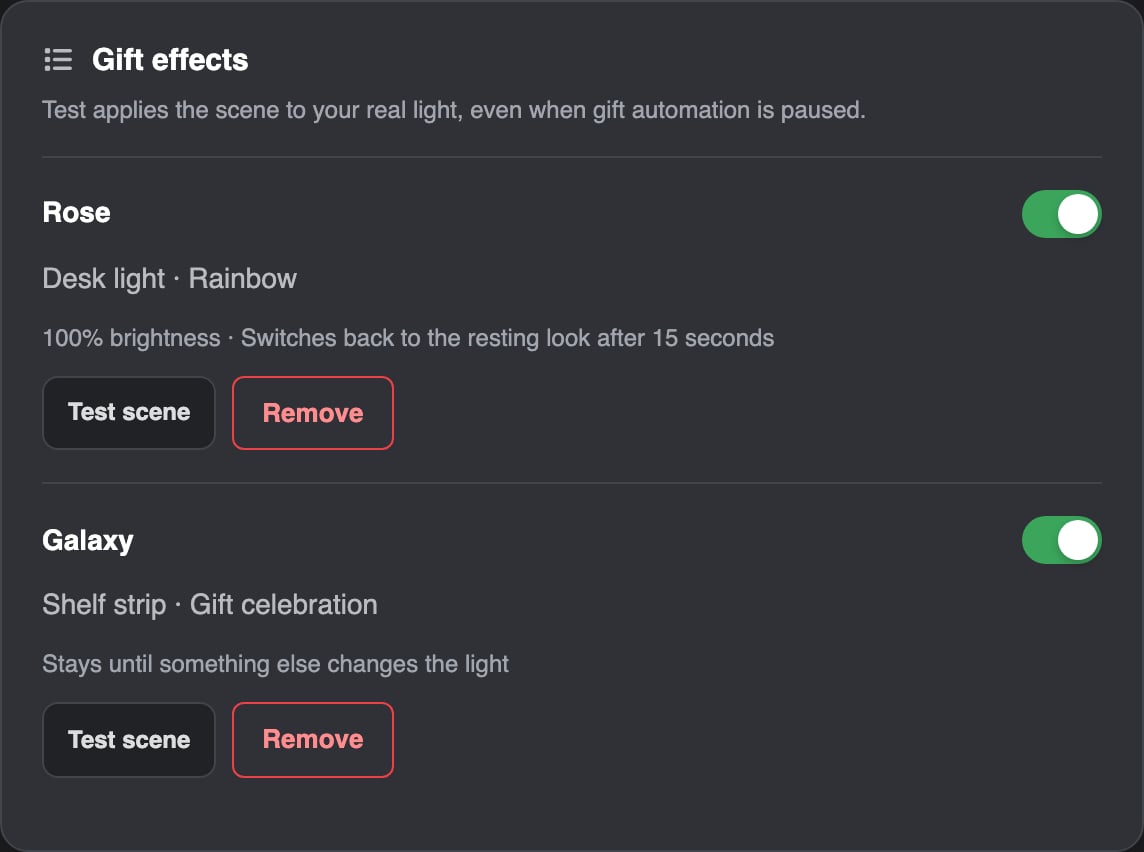
Each saved effect in Gift effects shows the light (or how many lights; select it to see their names), the scene, its brightness and scene length, how many Govee requests one gift uses, and the last time a gift tried to trigger it.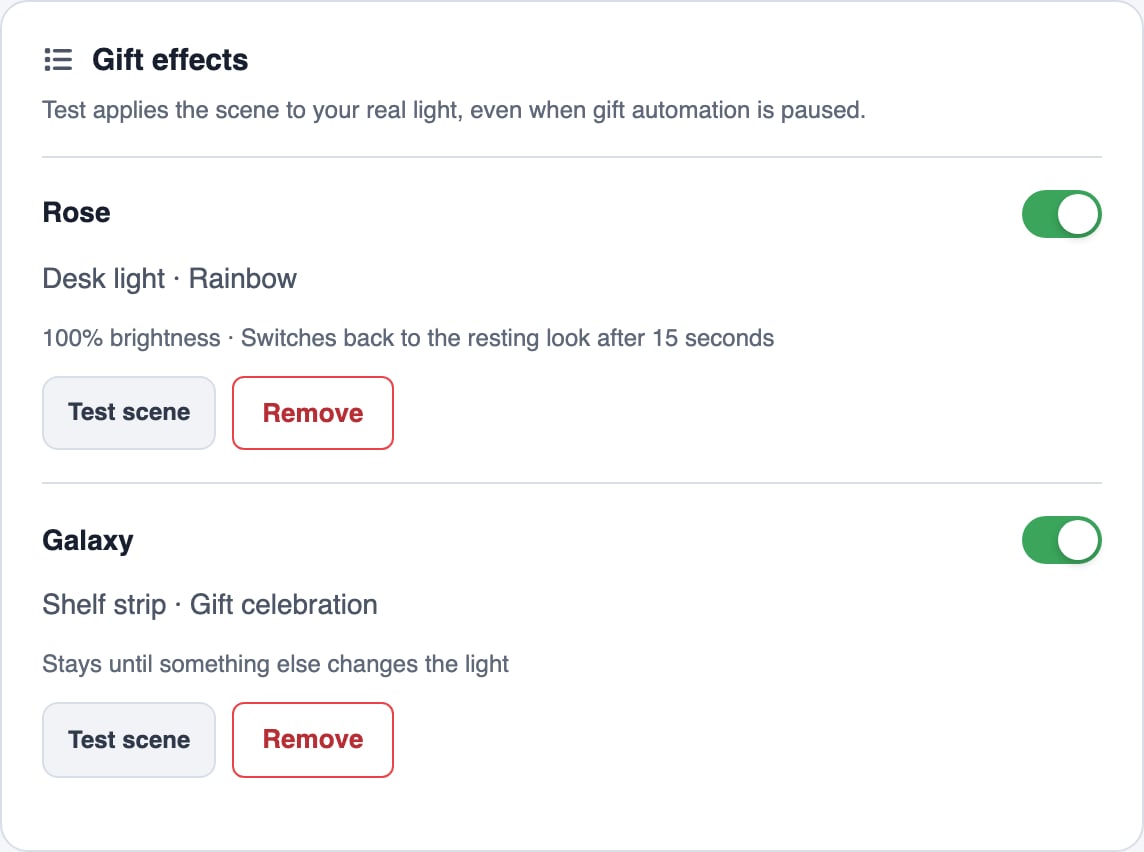
Troubleshooting
Disconnecting Govee Cloud deletes all Light Effects gift effects for the server.